
What Is 2FA? Meaning, Codes, and How to Activate It (Beginner’s Guide)
what is 2FA? Meaning, Verification Codes, and How to Activate It
Introduction:
Two-factor authentication, or 2FA, is a security step that asks you to prove your identity twice before you can log in to an account. Instead of trusting a password alone, 2FA asks for a second piece of proof, usually a code from your phone.
Table of Contents
ToggleThis one extra step makes it far harder for anyone else to break into your account, even if they somehow learn your password.
If you have ever typed “what is 2FA” into a search bar, or wondered how to get your verification code, this guide answers it in plain, simple language. You will learn what 2FA means, how it actually works, the different ways you can receive your code, and the exact steps to turn it on for almost any account you use.
Key Takeaways
- 2FA stands for Two-Factor Authentication — a login process that checks your identity using two separate proofs instead of just a password.
- It combines something you know (your password) with something you have (your phone, an app, or a key) or something you are (your fingerprint).
- Common ways to receive a 2FA code include authenticator apps, SMS text messages, email, push notifications, hardware security keys, and backup codes.
- According to CISA (the U.S. Cybersecurity and Infrastructure Security Agency), hardware security keys and authenticator apps are far stronger than SMS codes.
- SMS codes can be intercepted through SIM-swap scams, so treat them as a backup option rather than your main method whenever possible.
- You can usually turn on 2FA in under five minutes from your account’s Security settings.
- Microsoft’s own research shows that multi-factor authentication (which includes 2FA) blocks more than 99% of automated account takeover attempts.
- Always save your backup codes somewhere safe and offline, in case you ever lose access to your phone.
Table of Contents
- What Does 2FA Mean?
- What Is 2FA and How Does It Actually Work?
- Why 2FA Matters
- Types of 2FA: How You Can Get Your Code
- #how-do-i-get-my-2fa-code
- How Can I Activate 2FA? (Step-by-Step Guide)
- Practical Tips for Using 2FA Safely
- Common Mistakes to Avoid
- Quick Checklist Before You Turn On 2FA
- Final Thoughts
- Frequently Asked Questions
- Disclaimer
Summary Table: 2FA Methods at a Glance
| 2FA Method | How You Get the Code | Security Level | Best For |
|---|---|---|---|
| Hardware Security Key | Physical device you tap, plug in, or connect over NFC. | ⭐⭐⭐⭐⭐ Strongest | High-value accounts: crypto exchanges, banking, primary email. |
| Authenticator App | App generates a new 6-digit code every 30 seconds. | ⭐⭐⭐⭐☆ Very Strong | Most everyday accounts. |
| Biometric Verification | Your fingerprint or face unlocks your device or app. | ⭐⭐⭐⭐☆ Strong | Mobile-first accounts. |
| Push Notification | Approve or deny a prompt sent to your phone. | ⭐⭐⭐⭐☆ Strong | Fast daily logins. |
| Email One-Time Code | A one-time code is sent to your registered email. | ⭐⭐⭐☆☆ Moderate | Backup option, low-risk accounts. |
| SMS / Text Message | A one-time code is texted to your phone number. | ⭐⭐☆☆☆ Weakest | Backup option only. |
Security ranking is based on CISA’s official guidance on multi-factor authentication strength.
What Does 2FA Mean?
2FA stands for Two-Factor Authentication. It is a security method that asks for two different types of proof before you can access an account, instead of just one password.
You may also see it called 2-Step Verification (2SV) or Multi-Factor Authentication (MFA). These terms are closely related:
- 2FA always means exactly two factors.
- MFA means two or more factors, so every 2FA setup is a type of MFA, but not every MFA setup is limited to two.
According to CISA, multi-factor authentication is a security control that requires a combination of two or more different types of proof — something you know, something you have, or something you are — before granting access to an account.
What Is 2FA and How Does It Actually Work?
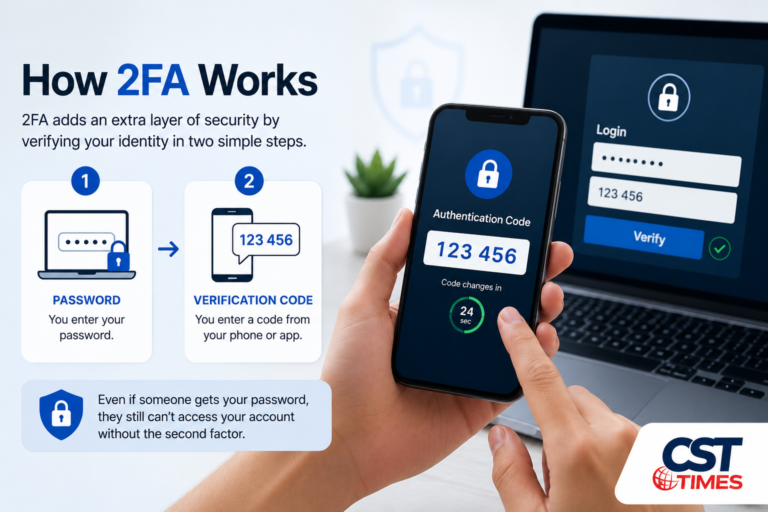
So, what is 2FA in practice? It is a two-step check that happens every time you log in.
Step one: You enter your password, like normal. This proves something you know.
Step two: The system asks for a second piece of proof before letting you in. This is usually a code, a tap on your phone, or a fingerprint scan.
Security researchers group these proofs into three categories, based on NIST’s official digital identity guidelines:
- Something you know — a password, PIN, or answer to a security question.
- Something you have — your phone, an authenticator app, or a physical security key.
- Something you are — a fingerprint, face scan, or other biometric.
2FA requires two proofs from two different categories. A password plus a PIN does not count, because both come from “something you know.” A password plus a code from your phone does count, because they come from two different categories.
This is why 2FA works so well. Even if someone steals your password, they still do not have your phone, your key, or your fingerprint.
Why 2FA Matters
A strong password is a good start, but it is not enough on its own.
Passwords get exposed in data breaches, guessed through automated attacks, or stolen through phishing emails that trick you into typing them into a fake login page. Once a hacker has your password, an account with no 2FA has nothing left to stop them.
2FA changes that. Here is why it matters:
- It blocks the vast majority of automated attacks. Microsoft’s own research on its cloud services found that multi-factor authentication blocks more than 99.2% of account compromise attempts, even when the attacker already has a valid password.
- It protects you even after a data breach. If a website you use gets hacked and your password leaks, 2FA still stands between the attacker and your account.
- It is free and fast. Almost every major website, app, and crypto exchange now offers 2FA at no extra cost, and setup usually takes a few minutes.
- It matters even more for financial and crypto accounts. Bank accounts and crypto exchange accounts are high-value targets, since a successful break-in can lead to real financial loss that is often difficult or impossible to reverse.
The FTC advises consumers to turn on two-factor authentication wherever it is offered, since it is one of the simplest and most effective ways to keep an account safe.

Types of 2FA: How You Can Get Your Code
An authenticator app, such as Google Authenticator or Microsoft Authenticator, generates a new 6-digit code on your phone every 30 seconds.
The app works using a method called TOTP (Time-based One-Time Password). When you first set up 2FA, the website shares a secret key with your app, usually through a QR code. From then on, both the website and your app can generate the same matching code, without needing an internet connection.
Because the code is created on your device instead of sent over text message, authenticator apps are much harder to intercept than SMS.
SMS or Text Message Codes
With this method, the website texts a one-time code to your registered phone number.
SMS 2FA is better than no 2FA at all, but CISA officially ranks it as the weakest form of multi-factor authentication. The main risk is a SIM-swap scam, where a criminal tricks your mobile carrier into transferring your phone number to a SIM card they control. Once that happens, your text messages, including your 2FA codes, go straight to them.
Use SMS as a backup option rather than your main method whenever a stronger choice is available.
Email Verification Codes
Some services send your one-time code to your registered email address instead.
This is convenient if you do not have your phone nearby, but it is only as secure as your email account. If someone breaks into your email, they can also access every account that uses email-based 2FA. For this reason, protect your email account with the strongest 2FA method it supports.
Push Notification Approval
Instead of typing a code, some apps send a “yes or no” prompt straight to your phone. You simply tap Approve or Deny.
This is fast and convenient, but be careful of MFA fatigue attacks, where an attacker who already has your password sends repeated login prompts, hoping you will approve one by mistake. Only ever approve a prompt that you personally triggered by trying to log in.
Hardware Security Keys
A hardware security key is a small physical device, such as a YubiKey, that you plug into a USB port or tap over NFC to confirm your identity.
Hardware keys use a standard called FIDO2/WebAuthn, and CISA ranks them as the strongest available form of MFA. Because the key checks that you are on the real website before it works, it is highly resistant to phishing, unlike codes that can be typed into a fake login page.
Biometric Verification
Biometric verification uses a physical trait, like your fingerprint or face, to confirm it is really you.
On most accounts, biometrics are used to unlock your phone or authenticator app rather than to log in to the website directly. This combines “something you are” with “something you have,” which is why it is considered a strong factor.
Backup Codes
Backup codes are a set of one-time-use codes generated in advance, for situations where you cannot use your normal 2FA method, such as losing your phone.
Each code works only once. Save them somewhere offline and secure, like a printed sheet in a safe place, not in your email inbox or an unprotected cloud note.
How Do I Get My 2FA Code?
Where your 2FA code comes from depends entirely on the method you chose when you set up 2FA:
- Authenticator app: Open the app on your phone. It shows a 6-digit code that refreshes every 30 seconds.
- SMS: Check the text messages on the phone number linked to your account.
- Email: Check the inbox (and spam folder) of the email address linked to your account.
- Push notification: Check your phone for a login approval request and tap Approve.
- Hardware key: Insert or tap your physical key when prompted; there is no code to type.
- Backup codes: Use the next unused code from the list you saved during setup.
If your code is not arriving:
- For authenticator apps, make sure your phone’s date and time are set to automatic. A time mismatch is the most common reason codes fail.
- For SMS, check your signal strength and make sure you have not blocked messages from short codes.
- For email, check your spam or junk folder.
- If nothing works, use a backup code, or contact the platform’s official support team for account recovery.
How Can I Activate 2FA? (Step-by-Step Guide)
General Steps for Any Account
The exact wording differs slightly between apps and websites, but the process is almost always the same:
- Open your account settings. Look for a section called “Security,” “Login & Security,” or “Privacy & Security.”
- Find the 2FA option. It is usually labeled “Two-Factor Authentication,” “2-Step Verification,” or “Multi-Factor Authentication.”
- Choose your method. An authenticator app gives the best balance of security and convenience for most people.
- Set it up. If you chose an app, scan the QR code shown on screen. If you chose SMS, enter and confirm your phone number.
- Confirm with a code. Enter the 6-digit code your chosen method gives you, to prove the setup worked.
- Save your backup codes. Download or write them down and store them somewhere offline and safe.
- You’re done. From now on, you will need both your password and your second factor to log in from a new device.
Example: Turning On 2FA for a Crypto Exchange Account
Crypto exchanges are a common example of where 2FA really matters, since a compromised account can lead to direct financial loss. On most major exchanges, including Binance, the process looks like this:
- Log in and go to your Profile or Account, then Security.
- Find Authenticator App and select Enable.
- Scan the QR code with your authenticator app, or enter the setup key manually.
- Save the backup key somewhere safe. It is the only way to recover 2FA if you lose your phone.
- Enter the code your app generates to confirm.
Many exchanges automatically pause withdrawals for 24–48 hours after you change your 2FA settings. This is a safety feature, not an error — it is designed to stop a hacker from immediately draining your account after taking over your 2FA.
Practical Tips for Using 2FA Safely
- Secure your email account first. It is usually the recovery path for most of your other accounts.
- Choose an authenticator app or hardware key over SMS whenever the option is available.
- Never share your 2FA code with anyone, even someone claiming to be “customer support.” Legitimate companies never ask for it.
- Store backup codes offline, such as on paper, not in your inbox or an unlocked notes app.
- Prioritize your financial and crypto accounts. Turn on the strongest available 2FA method for banking, email, and exchange accounts first.
- Check your active sessions occasionally. Most security settings let you see and log out of devices you no longer recognize.
Common Mistakes to Avoid
- Relying only on SMS when a stronger method, like an app or hardware key, is available.
- Never saving backup codes, or saving them somewhere you would lose along with your phone.
- Storing a screenshot of your QR code or setup key in an unprotected cloud photo album.
- Approving a login prompt you did not personally trigger.
- Turning on 2FA but never testing that you can actually log back in with it.
Quick Checklist Before You Turn On 2FA
- ✔ Pick an authenticator app you trust, such as Google Authenticator or Microsoft Authenticator.
- ✔ Open your account’s Security settings.
- ✔ Select “Enable Two-Factor Authentication” or “2-Step Verification.”
- ✔ Scan the QR code or link your phone number.
- ✔ Enter the verification code to confirm setup.
- ✔ Download or write down your backup codes.
- ✔ Store your backup codes somewhere offline and safe.
- ✔ Log out and log back in once to confirm your 2FA works correctly.
Final Thoughts
Now that you know what 2FA is, it should be clear why security experts, banks, and crypto exchanges all recommend it. A password alone is simply not enough protection anymore, and 2FA closes that gap in a few minutes, for free.
Newer technology like passkeys is starting to reduce how often people need passwords and codes at all. But 2FA is still the most widely supported security option across almost every website and app today, which makes it worth setting up right now, especially on your email, banking, and crypto exchange accounts.
Take a few minutes today to turn on 2FA. It is one of the easiest and most effective steps you can take to protect your accounts.
Frequently Asked Questions
1. What does 2FA stand for?
2FA stands for Two-Factor Authentication. In simple terms, what is 2FA? It is a login process that checks your identity using two different proofs instead of one.
2. Is 2FA the same as MFA?
Not exactly. 2FA always uses exactly two factors, while MFA (Multi-Factor Authentication) can use two or more. Every 2FA setup is a type of MFA, but not every MFA setup is limited to two factors.
3. Is SMS 2FA safe to use?
It is better than having no 2FA at all, but CISA officially ranks SMS as the weakest form of multi-factor authentication, mainly because of SIM-swap scams. Use an authenticator app or hardware key instead, if the option is available.
4. What happens if I lose my phone and can’t get my 2FA code?
Use one of your saved backup codes to log in, then set up 2FA again on your new device. If you did not save backup codes, use the account recovery option and contact the platform’s official support team.
5. Can I use 2FA without a smartphone?
Yes. You can use a hardware security key, a landline for voice call verification, or pre-saved backup codes instead of an app.
6. Why am I not receiving my 2FA code?
Common causes include an incorrect phone number, a weak signal, your email code landing in spam, or your phone’s date and time being out of sync for authenticator apps.
7. Is 2FA free to set up?
Yes. Authenticator apps like Google Authenticator and Microsoft Authenticator are free to download, and most websites offer 2FA at no extra cost.
8. Should I turn on 2FA for every account?
It is a good idea, especially for your email, banking, social media, and crypto exchange accounts, since these carry the highest risk if someone breaks in.
Disclaimer:
This article is for general educational purposes only and does not replace professional cybersecurity, financial, or legal advice. Two-factor authentication significantly reduces risk, but it cannot guarantee that an account will never be compromised.
Always follow the official security instructions provided by your bank, cryptocurrency exchange, or service provider, and consult a qualified professional for high-value or business accounts. CST Times is not responsible for any losses resulting from account compromise, scams, or user error.
References:
- National Institute of Standards and Technology (NIST) — Digital Identity Guidelines: Authentication and Lifecycle Management (SP 800-63B)
- Cybersecurity and Infrastructure Security Agency (CISA) — Why a Strong Password Isn’t Enough: Your Guide to Multifactor Authentication
- CISA — More Than a Password
- Google Account Help — Turn on 2-Step Verification
- Microsoft Learn — Plan for Mandatory Microsoft Entra Multifactor Authentication
Follow us on Social media :
About The Author

Haseeb Jabbar
Haseeb Jabbar writes about crypto, finance, technology, and AI at CST Times, sharing research-based guides, timely news, and free tools and calculators to help readers make informed decisions.

Pingback: What Is an Authenticator App? A Beginner’s Guide
Pingback: Revolut Supported Countries 2026: Full List (Updated Oct)