
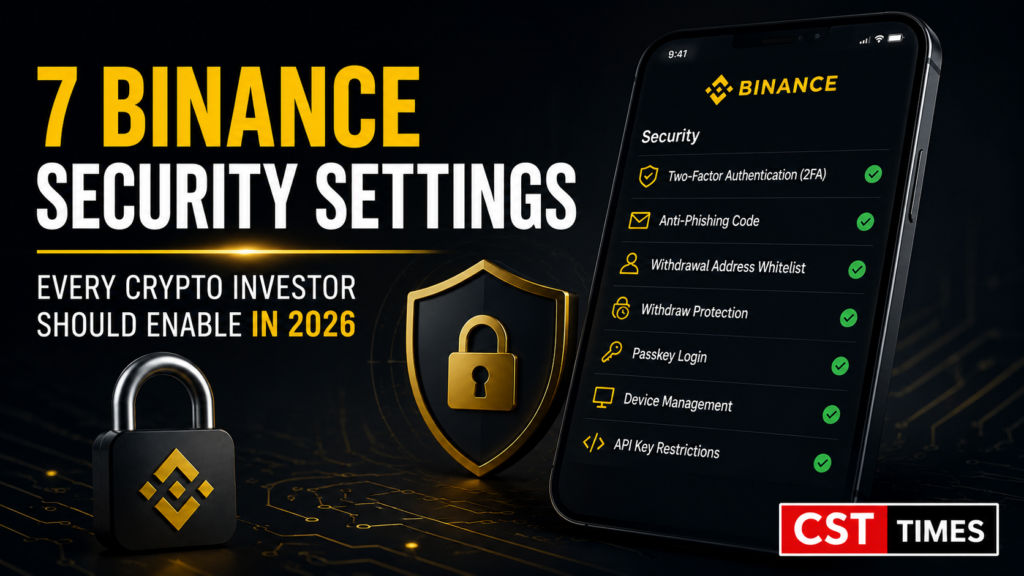
7 Binance Security Settings Every Crypto Investor Should Enable in 2026
Binance Security Settings Every Crypto Investor Should Know about
Quick Summary:
Crypto theft rarely starts with a sophisticated hack. It usually starts with a weak password, a setting left off, or a fake email that looks completely real.
Binance security settings in 2026 are stronger than ever, but most of that protection only works once you turn it on yourself. The default setup protects the platform — it doesn’t automatically protect your account.
This guide walks through the seven most important Binance security settings to enable right now, including the new Withdraw Protection feature launched this year. You’ll learn what each setting does, why it matters, and exactly how to turn it on in a few minutes.
Whether you’re new to crypto or you’ve been trading for years, these settings take under 20 minutes to set up and could save your entire portfolio.
Table of Contents
Toggle📌 Key Takeaways
- Turn on 2FA using an authenticator app or a passkey — not SMS alone.
- Set a unique Anti-Phishing Code so you can instantly spot fake Binance emails.
- Use Withdrawal Address Whitelisting to block withdrawals to wallets you don’t control.
- Try Binance’s new Withdraw Protection feature to self-lock withdrawals for 1–7 days during high-risk periods.
- Switch to Passkey login for phishing-resistant, passwordless access.
- Check Device Management regularly to spot and remove logins you don’t recognize.
- Restrict API keys by IP address and permission if you use trading bots or portfolio trackers.
- No single setting is foolproof — combine account security with safe habits and cold storage for large holdings.
Binance Security Settings at a Glance
| # | Security Setting | Protects Against | Where to Find It |
|---|---|---|---|
| 1 | Two-Factor Authentication (2FA) | Password theft and unauthorized logins | Security → Two-Factor Authentication |
| 2 | Anti-Phishing Code | Fake emails and phishing scams | Security → Anti-Phishing Code |
| 3 | Withdrawal Address Whitelist | Withdrawals to unknown wallet addresses | Security → Withdrawal Whitelist |
| 4 | Withdraw Protection | Coerced or forced withdrawals | Security → Withdraw Protection |
| 5 | Passkey Login | Credential theft and man-in-the-middle attacks | Security → Passkey |
| 6 | Device Management | Unrecognized sessions and devices | Security → Device Management |
| 7 | API Key Restrictions | Bot and third-party application abuse | API Management |
1. Enable Two-FactorAuthentication (2FA)
Two-factor authentication adds a second lock to your account. Even if someone steals your password, they still need a code from your phone or device to get in.
Why it matters
Passwords leak. Data breaches on other websites often expose passwords that people reuse on Binance without realizing it. 2FA stops a stolen password from being enough on its own to break in.
Authenticator App vs. SMS vs. Passkey
Binance supports SMS, email, and authenticator app codes (such as Google Authenticator), plus passkeys (covered in Setting 5). SMS is the weakest option, because criminals can sometimes hijack a phone number through a SIM swap and receive your codes directly. An authenticator app is safer, since the codes are generated on your device and never travel over the phone network.
How to enable it
- Open Binance and go to your Profile icon → Security.
- Select Two-Factor Authentication.
- Choose Google Authentication (or another supported authenticator app).
- Scan the QR code with your authenticator app.
- Save your backup key somewhere offline, like a notebook — not a screenshot on your phone.
Good to know: after you change your password or 2FA method, Binance automatically pauses withdrawals for 24–48 hours as a built-in safety measure. This is normal and can’t be sped up, so avoid changing these settings right before you plan to withdraw funds.
2. Set Up an Anti-Phishing Code
An anti-phishing code is a short word or phrase you choose yourself. Once it’s set, every genuine email from Binance will include this code.
Why it matters
Fake “Binance” emails try to trick you into clicking a bad link or entering your password on a copycat site. If an email claiming to be from Binance doesn’t show your code, you know instantly that it’s fake — no guesswork needed.
Example: if your code is “BlueOwl82,” every real Binance email will display “BlueOwl82” somewhere in the message. An email without it is fake, no matter how convincing it looks otherwise.
How to set it up
- Go to Profile → Security → Anti-Phishing Code.
- Enter a code that’s easy for you to remember but hard for anyone else to guess.
- Confirm with your 2FA code.
- Avoid obvious codes like “Binance” or “Bitcoin,” and avoid reusing a code from another site.
It’s worth updating this code every few months, since a code you’ve used for years is more likely to have been seen somewhere it shouldn’t have been.
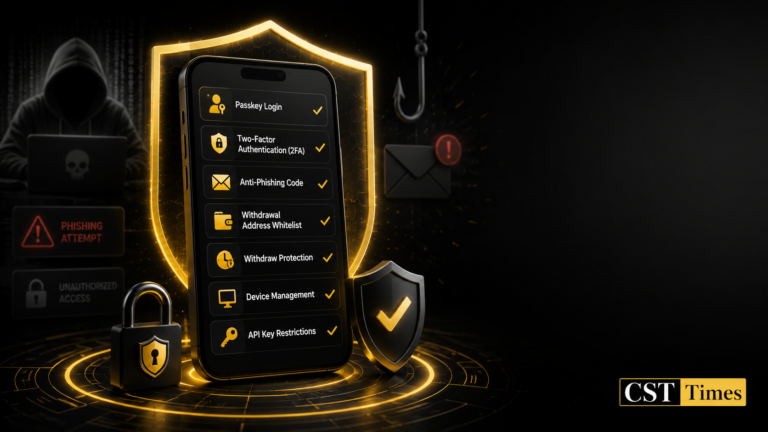
3. Turn On Withdrawal Address Whitelisting
This setting limits withdrawals to a list of wallet addresses you’ve already approved in advance.
Why it matters
If someone breaks into your account, whitelisting stops them from sending your funds to a wallet they control instead of you. Newly added addresses typically face a short waiting period (commonly 24 hours) before they can receive a withdrawal, which gives you a window to notice anything suspicious and react.
How to turn it on
- Go to Profile → Security → Withdrawal Whitelist.
- Turn on “Enable Withdrawal Whitelist.”
- Add only wallet addresses you fully control or fully trust.
- Double-check each address character by character before saving — some malware silently swaps a copied address for one it controls.
4. Use Withdraw Protection
Withdraw Protection is one of Binance’s newest safety features, launched in 2026, and it targets a very different kind of threat: being forced to withdraw funds under pressure rather than through a typical hack.
Why it matters
Crypto holders have increasingly been targeted by so-called “wrench attacks” — physical threats aimed at forcing someone to hand over their crypto on the spot. Withdraw Protection lets you lock your own account against withdrawals for one to seven days, and Binance says the lock cannot be lifted early by the exchange itself.
Lock Mode vs. Lockdown Mode
- Lock mode: you can still unlock early, but only after passing strong verification, such as a security key plus an authenticator app.
- Lockdown mode: early unlocking is disabled completely until the timer runs out, with no exceptions on your end.
How to enable it
- Go to Profile → Security → Withdraw Protection.
- Choose your lock duration (1 to 7 days).
- Decide whether to allow early unlocking, or choose lockdown mode for maximum protection.
- Confirm with 2FA.
Example: if you’re traveling for a week, locking withdrawals for the full trip means that even if someone pressures you for account access while you’re away, they still can’t force a withdrawal through.
5. Switch to Passkey Login
A passkey replaces your password with your device’s built-in fingerprint, face scan, or PIN. Binance supports passkeys across web, iOS, Android, macOS, and Windows.
Why it matters
Passkeys are built on public-key cryptography, so there’s no password for a phishing site to steal in the first place. Even if you accidentally land on a fake Binance page, your passkey simply won’t work there, because it’s cryptographically tied to Binance’s real domain.
How to set it up
- Go to Profile → Security → Passkey.
- Follow the prompt to register your device’s biometrics or a hardware security key.
- Optional but recommended: turn on “Must verify using passkey for important scenarios” to require passkey confirmation for high-risk actions like withdrawals.
Binance recommends using a passkey as your main login method, with an authenticator app kept as a backup in case you lose access to your passkey device.
6. Monitor Device Management
Device Management shows every device and browser session currently logged into your account.
Why it matters
If you spot a device or location you don’t recognize, that’s often an early warning sign your account has been compromised — and it usually shows up before any money actually moves.
How to check it
- Go to Profile → Security → Device Management.
- Review the list of logged-in devices and their approximate locations.
- Remove any device or session you don’t recognize immediately.
- Check this page monthly, and especially after using public Wi-Fi or a shared computer.
7. Restrict API Key Permissions
If you use trading bots, portfolio trackers, or other third-party tools, you’re likely using API keys to connect them to Binance. These keys deserve the same level of protection as your main login.
Why it matters
An exposed API key with broad permissions can let someone trade or withdraw funds without ever needing your password or 2FA code.
How to secure your keys
- Go to Profile → API Management.
- Create a separate key for each tool you use, instead of reusing one key everywhere.
- Turn off “Enable Withdrawals” unless a specific tool genuinely needs it.
- Add an IP address restriction so the key only works from your own computer or server.
- Delete keys for tools you no longer use.
Bonus Security Tips
- Use a password manager to generate and store a long, unique Binance password.
- Keep your 2FA backup codes on paper, not in cloud storage or phone screenshots.
- Avoid logging in over public Wi-Fi unless you’re using a trusted VPN.
- Move long-term holdings to a hardware wallet, such as a Ledger or Trezor device, so your coins live outside any exchange entirely.
- Bookmark the official Binance URL rather than clicking links from search ads, emails, or messages.
Quick Security Checklist
- ✔ Authenticator app or passkey 2FA enabled
- ✔ Anti-Phishing Code set and memorable
- ✔ Withdrawal Whitelist turned on
- ✔ Withdraw Protection configured, especially before travel
- ✔ Passkey registered on your main device
- ✔ Device Management reviewed this month
- ✔ API keys restricted by IP and permission
- ✔ Large holdings moved to a hardware wallet
Final Thoughts on Binance Security Settings in 2026
Binance already runs one of the most tested security systems in the crypto industry, but none of it protects you unless you actually turn it on. The seven Binance security settings covered here — 2FA, the anti-phishing code, withdrawal whitelisting, Withdraw Protection, passkeys, device management, and API key restrictions — take less than half an hour to set up together.
From the CST Times: we’ve found that the investors who avoid the worst losses aren’t the ones with the most complicated setups. They’re the ones who treat account security as routine maintenance rather than a one-time chore.
Crypto remains an attractive target for scammers precisely because so many accounts are left under-protected. Set aside 20 minutes this week, work through the checklist above, and close the easiest doors that attackers rely o
Frequently Asked Questions
1. What is the most important Binance security setting to enable first?
Two-factor authentication is the single most important Binance security setting to enable first. Set it up using an authenticator app or a passkey rather than SMS, since SMS codes can sometimes be intercepted through SIM swapping.
2. Is SMS-based 2FA safe enough for Binance?
It’s better than no 2FA at all, but it’s the weakest option Binance offers. Criminals can sometimes take over a phone number and receive your SMS codes. An authenticator app or passkey doesn’t share this weakness.
3. What is Binance’s Anti-Phishing Code and how does it work?
It’s a personal code you create once inside your account settings. Binance includes it in every genuine email it sends you, so if an email claiming to be from Binance is missing your code, you’ll know right away that it’s fake.
4. What is Binance’s new Withdraw Protection feature?
Withdraw Protection, introduced in 2026, lets you lock your own account against withdrawals for one to seven days. It was built partly in response to a rise in physical coercion attempts against crypto holders, and Binance states that the lock cannot be lifted early by the exchange itself.
5. Can I recover my Binance account if I lose access to my 2FA device?
Yes, through Binance’s identity verification process, though it can take some time. This is exactly why saving your 2FA backup key offline matters — it can make recovery much faster if you ever lose your device.
6. Do I still need a hardware wallet if I enable all these Binance security settings?
For active trading, exchange security settings are usually enough day-to-day. For long-term savings, most experienced investors still move funds to a hardware wallet, since it removes exchange custody risk completely.
7. How often should I review my Binance security settings?
Check Device Management monthly, update your Anti-Phishing Code every few months, and review your API keys whenever you stop using a particular trading tool or bot.
8. Does enabling these settings guarantee my funds are 100% safe?
No setting can offer a full guarantee. These settings significantly reduce your risk, but staying alert to phishing attempts and social engineering matters just as much as the settings themselves.
Disclaimer:
This article is for educational and informational purposes only and does not constitute financial, investment, or security advice. Cryptocurrency trading carries risk, including the risk of loss. CST Times is not affiliated with or endorsed by Binance. Menu names, steps, and features described here may change over time, so always confirm current instructions directly on Binance’s official app or website before making changes to your account. Consult a licensed financial advisor before making investment decisions.
References: Binance Support
Follow us on Social media :
About The Author

Haseeb Jabbar
Haseeb Jabbar writes about crypto, finance, technology, and AI at CST Times, sharing research-based guides, timely news, and free tools and calculators to help readers make informed decisions.

Pingback: Fake Payment Screenshot Scam: 6 Essential Binance P2P Steps
Pingback: Crypto Transaction Pending? 7 Easy, Safe Steps to Fix It